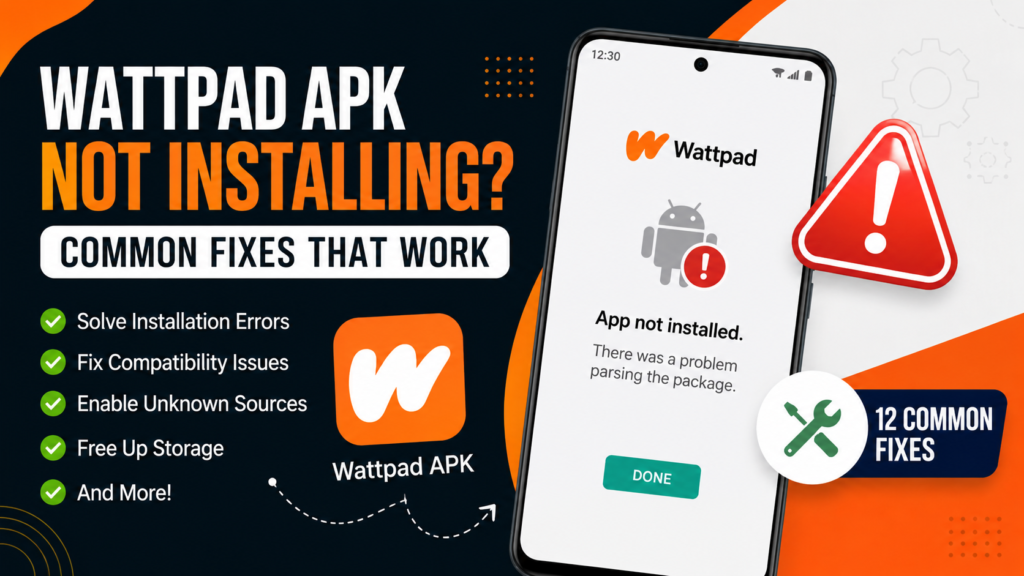
Are you trying to install the Wattpad APK on your Android phone but getting an error? You are not alone. Many Android users face installation problems when installing an APK file, especially when it’s downloaded from outside the Google Play Store.
The error may appear as “App Not Installed,” “There Was a Problem Parsing the Package,” “Installation Blocked,” or the installation may stop without completing. In most cases, the problem is related to Android security settings, an incompatible APK version, insufficient storage, an incomplete download, or an existing version of the app.
This guide explains the most common reasons why Wattpad APK may not install and provides practical solutions you can try.
Why Is Wattpad APK Not Installing?
Before trying different solutions, it is useful to understand the possible cause of the problem. The most common reasons include:
- Installation from unknown sources is disabled
- The APK file is incomplete or corrupted
- Your Android version is not install compatible
- An older version of the app is already installed
- Your phone does not have enough storage
- The APK package is not install compatible with your device architecture
- Android security settings are blocking the installation
- The file format is not install a standard APK
- The downloaded file does not match your device
Try the following solutions one by one.
1. Enable Installation from Unknown Sources
Android normally blocks applications downloaded from websites unless you allow the browser or file manager to install apps.
If you see an error such as “For your security, your phone currently isn’t allowed to install unknown apps,” you need to change this permission.
How to Allow APK Installation
- Open Settings on your Android phone.
- Go to Apps or App Management.
- Select the browser or file manager you used to download the APK.
- Tap Install Unknown Apps.
- Enable Allow from This Source.
- Try installing the Wattpad APK again.
The exact menu names may be different depending on your Android manufacturer. Samsung, Xiaomi, Redmi, Oppo, Vivo, Realme, and other phones may use slightly different settings.
For security, only enable this permission for a source you trust and turn it off again when you no longer need it.
2. Check Whether the APK Download Is Complete
A partially downloaded APK file may not install correctly. This can happen when the internet connection is interrupted during the download.
Check the file size and compare it with the size mentioned on the download page. If the file appears unusually small or the download was interrupted, delete it and download it again.
For a better download experience:
- Use a stable Wi-Fi or mobile data connection
- Avoid closing the browser during the download
- Make sure your phone has enough storage
- Do not rename the file extension
- Download the file again if the first attempt fails
A corrupted APK is one of the most common causes of installation failure.
3. Make Sure Your Android Version Is Compatible
Every Android application has minimum system requirements. If your phone is running an older version of Android, the latest Wattpad APK may not support it.
To check your Android version:
- Open Settings.
- Scroll down to About Phone.
- Find Android Version.
- Compare your Android version with the requirements of the APK you are trying to install.
If the APK requires a newer Android version than your device supports, installation may fail. In that situation, you may need a compatible older version rather than the latest release.
4. Uninstall the Existing Version Before Installing
Sometimes Android can not install an APK because another version of the same application is already installed.
This may happen when:
- The existing app was installed from another source
- The APK has a different signing key
- You are trying to install an older version over a newer version
- The package is incompatible with the current installation
Try This Fix
- Open Settings.
- Go to Apps.
- Find Wattpad.
- If you already have it installed, uninstall the existing version.
- Restart your phone.
- Try installing the APK again.
Important: Uninstalling an app may remove locally stored data. If you use the official Wattpad app and your account is synced, make sure you know your login details before uninstalling it.
5. Free Up Storage Space
Android may fail to install an application if your phone does not have enough free storage.
Even if the APK file itself is relatively small, Android needs additional space to extract and install the application.
You can free up space by:
- Removing unused apps
- Deleting large videos
- Clearing unnecessary downloads
- Removing duplicate files
- Moving photos to cloud storage or another device
Try to keep some extra free storage available before installing a new application.
6. Clear Your File Manager or Browser Cache
Sometimes the browser or file manager may have temporary data that interferes with the APK installation process.
You can try clearing its cache:
- Open Settings.
- Go to Apps.
- Select your browser or file manager.
- Tap Storage.
- Select Clear Cache.
- Download the APK again and try installing it.
Clearing the cache normally does not delete your personal files, but avoid selecting Clear Data unless you understand what information will be removed.
7. Check the APK File Extension
A standard Android installation file usually ends with:
.apk
If the file ends with another extension, it may not be a regular APK package. Some applications are distributed in split or bundle formats that require a compatible installer.
If you downloaded a file and it does not have the .apk extension, do not simply rename random file types and expect them to work. Make sure you are using the correct package format for your Android device.
8. Restart Your Android Phone
It may sound simple, but restarting your phone can solve temporary system problems.
A restart can:
- Close background processes
- Refresh Android services
- Clear temporary system errors
- Release memory
- Resolve a stuck installation process
After restarting your device, try the installation again.
9. Check Android Security and Play Protect Settings
Android security systems may warn you about applications installed from outside the Google Play Store.
If the installation is blocked, review the warning carefully and make sure you understand what you are installing. Avoid installing files from suspicious sources or files that show unexpected behavior.
You should also keep your device security updated. If an APK appears suspicious, requests unnecessary permissions, or behaves differently from what you expect, do not install.
10. Check Your Device Architecture
Some Android applications may be built for specific processor architectures. If an APK is not install compatible with your device architecture, it may fail to install or may not work properly.
Common Android architectures include:
- ARM64
- ARM
- x86
Most modern Android phones use ARM-based architectures, but compatibility can vary depending on the application package.
If an APK is specifically designed for a different architecture, you may need a compatible version for your device.
11. The APK May Be Incompatible With Your Device
Even if your Android version is supported, the APK may still be incompatible with your specific device.
Compatibility can depend on:
- Android version
- Processor architecture
- Screen and device requirements
- Application package type
- Manufacturer-specific system restrictions
If one APK version does not install, check whether another compatible version is available for your Android version.
12. Try Downloading the File Again
If you have tried the common solutions and the APK still does not install, the file itself may be damaged.
Delete the existing file completely and download a fresh copy from a reliable source. Do not install files that have been modified unexpectedly or that come from unknown websites.
Before installing any APK, verify:
- The file has the expected extension
- The download completed successfully
- The file is intended for Android
- The version is compatible with your device
Common Wattpad APK Installation Errors
“App Not Installed”
This is one of the most common Android APK errors. It may be caused by:
- An existing conflicting version
- Incompatible Android version
- Corrupted APK
- Insufficient storage
- Incompatible package architecture
Try uninstalling the existing version, freeing storage, and downloading a compatible APK again.
“There Was a Problem Parsing the Package”
This error usually means Android could not properly read the APK package.
Possible reasons include:
- The APK download is incomplete
- The Android version is too old
- The package is corrupted
- The file is not install compatible with your device
Downloading a fresh compatible version often solves the problem.”
“Installation Blocked”
This usually means Android security settings are preventing installation from the current source.
Check your Install Unknown Apps permission for the browser or file manager that opened the APK.
Installation Stops at a Certain Percentage
This may happen because of:
- Low storage
- A damaged file
- A background system problem
- A conflict with an existing app version
Restart your phone, free up storage, and try installing a fresh APK file.
How to Prevent APK Installation Problems
You can reduce the chance of not installing by following these tips:
Keep Android Updated
A newer Android version generally provides better compatibility with modern applications.
Maintain Free Storage
Avoid filling your phone completely. Keeping extra storage available helps with application installation and updates.
Use a Stable Internet Connection
An interrupted download can result in a damaged or incomplete APK file.
Check Compatibility Before Downloading
Always confirm that the APK version is suitable for your Android version and device.
Avoid Multiple Conflicting Versions
Installing different versions after showing a “not installed” error for the same app from different sources can create package conflicts.
Download From a Trusted Source
Only download applications from websites you trust. Be careful with modified or unknown APK files, especially if they request unusual permissions.
FAQs
Why is Wattpad APK showing “App Not Installed”?
The most common reasons are an incompatible APK, an existing version of the app, insufficient storage, or a corrupted download. Try uninstalling the existing version and downloading a compatible APK again.
Whycan’tt I install an APK on my Android phone?
Your phone may be blocking installation from unknown sources, or the APK may not be compatible with your Android version. Check your installation permissions and system compatibility.
Can low storage prevent an APK from installing?
Yes. Android requires additional free space to process and install an application. Free up storage before trying again.
Should I uninstall the existing Wattpad app first?
If the APK has a different version or signing key, uninstalling the existing version may resolve the installation conflict. However, make sure you know your account login details before removing an existing app.
Why does Android say there is a problem parsing the package?
This error often indicates a damaged download, an incompatible Android version, or an APK package that your device cannot read properly.
What should I do if the APK still does not install?
Check your Android version, free up storage, enable installation permissions, remove any conflicting version, restart your phone, and download a compatible file again. If the problem continues, the APK may not support your device.
Final Thoughts
Wattpad APK not installing is usually caused by a few common issues, including disabled installation permissions, incompatible Android versions, insufficient storage, corrupted downloads, or conflicts with an existing application.
Start with the simplest solutions first: check your Android version, make sure you have enough storage, enable the necessary installation permission, and verify that the APK file downloaded correctly. If another version of the application is already installed, a package conflict may also be responsible.
Always be careful when installing applications from outside official app stores. Check the source, review the file carefully, and avoid installing suspicious files or applications that request unnecessary permissions. With the right compatible APK and proper Android settings, many common installation problems can be resolved quickly.